Showing posts with label Explained. Show all posts

Friday, June 26, 2015

Android Pay and Fingerprint Sensor: Android M Spotlight

Android PayWhat is Android Pay?

Android Pay will be Google's newest mobile payment app. It will work on devices running Android 4.4 KitKat and up. In Android 4.4 Google introduced  native support for tap & pay mobile wallet apps. In the spirit of open source this was a good thing, it allowed developers the chance to become the next mobile wallet app of choice. The only problem is that mobile payments are extremely complex and the support in Android 4.4 was just to allow apps to work better in instances where multiple mobile wallets were installed and just overall better support. When you create a mobile wallet app you need to have agreements with financial institutions to facilitate those transactions. Android Pay does that by creating a better platform for these apps. It is the same thing as Google Wallet but when something is labeled Android that means it is open source and can be used by other developers where you couldn't do that with Google Wallet. 

The other neat feature that this will allow is for shopping apps. When you go to check out you can use Android Pay instead of entering in all your information. Apple Pay has a very similar (may be the same) implementation and this would essentially allow the user to store their payment information and not have to enter it into every app they buy items from.

Wednesday, June 24, 2015

App Permissions: Android M Spotlight

App permissions have long been a controversial topic for Android apps, lately there have been numerous articles regarding flashlight apps and the permissions they request. Google wants to make permissions easier for people to use and understand so that they can control their apps the way they want.

How it Works

Typically when you install an app from the Play Store you are provided a list of permissions that the app wants access to. In order to install the app, you must by default, accept these requests or no app for you. With Android M this changes, instead when you install the app you don't have to accept the permissions, instead you grant or deny them when the app actually needs it. For example if you download Facebook Messenger and you go to send a picture, the app will pop up a little window asking if you want to give the app permission to view your files. Same goes for using the camera in Messenger, if you want to take a picture it'll ask you for permission to use the camera first. The ability for users to fine tune their app permissions will go a long way for developers and trust.

Monday, June 22, 2015

Google Now on Tap: Android M Spotlight

Now on Tap

A cleverly worded feature for a equally clever feature. In its extended name Google Now on Tap is a new way to interact with Google Now making the app much smarter. Google Now will become aware of what is on your screen and give you the ability to take immediate action. Thus if you are looking at an email that says something about a location you can hold the home button and Google Now on Tap will show you information about that place. If somebody reminds you to do something Google Now on Tap will detect that and allow you to add that as a reminder. It will even allow you to use pronouns to ask questions, so if you're looking at a picture of an animal and ask Google Now on Tap, "What is that?" it will know you are referring to the image and search for you. When we speak commands to our smartphones users have to be very specific because smartphones typically can't pick up context. This also works with music, the example Google used on stage during I/O '15 was Skrillex. They had a song playing by him and then asked Google, "What's his name?" and Google served a result with Skrillex's real name, it was really cool from a technical stand point. My only question is, will we be able to leverage this feature an any app that happens to be playing music or will the music app need to take advantage of Google Now API's to do that. I'm sure if I watch the workshop video about Now on Tap I could find out for sure.

Why You Should Care

Google Now on Tap is honestly the most useful feature Google has announced for Android M, and although Now on Tap seems extremely gimmicky it is actually unbelievably useful. If I get a text message from my girlfriend asking me to pick something up at the store, I can hold the home button and Google Now on Tap will show up for me to add a reminder to pick something up at the store. The alternative is almost as easy using voice commands but this cuts that part right out of the equation. On top of that if she says she wants to go out to Olive Garden for dinner I can hold the home button and the Google Now card for Olive Garden will show up along with links to call, navigate, get reviews, and reservations. There are tons of uses for Now on Tap and honestly I will probably be writing an entire article about this later. Basically this features gives the average user the ability to take advantage of Google Now and all its features without needing to know what voice commands are required.


Friday, June 19, 2015

Ambient Display Explained

Ambient Display
Ambient Display is a feature new to Android 5.0 that allows you to glance at your notifications without lighting up your entire screen. The Moto X (2013) introduced us to this feature which was called Active Display at the time. Instead of the traditional notification LED light that is on most smartphones to indicate a new notification, this feature was made so users could see what they were. The most interesting part of this feature is that it has a low impact on battery, which is why it is so popular.

How it Works

Ambient Display works by using a specialized chip inside the phone's SoC to monitor the phone's movement. This chip is specially designed to only read the sensor information in order to use the least amount of power as possible. Without it, your device would have to use the main processor or application processor as its more formally known as to monitor for motion. Since the application processor is much more advanced we would see a significant drain in battery and our phone would never reach deep sleep mode. 

The magic doesn't just happen within the chip either, for smartphones with AMOLED screens there is even more power savings. AMOLED pixels are unique in that they give off their own light instead of backlights doing it. When a pixel turns black your smartphone actually turns off the pixel completely giving you the blackest black possible. Since the pixel is off it no longer consumes any power and its like your screen is off. When Ambient Display shows notifications it only lights up the pixels it needs and shows everything in a grayscale color scheme. 

Motorola X8 and Snapdragon 800 Series

Qualcomm Snapdragon 805 SoC
Snapdragon 805 SoC
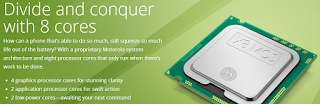
Motorola X8 Computing System
The Motorola X8 Computing System was the first chip that utilized the always listening and motion sensing features. Google owned Motorola at the time and likely funded the research and development of this SoC. The reason being was Qualcomm had long been including those low power "contextual" cores for a little while, but for reasons I cannot understand (and even to this day) Qualcomm doesn't write their drivers well or doesn't open source them. What Google had to do was not only show their competitors what those cores we couldn't even use could do and that they could sell phones with it. So with a little bit of time Qualcomm got their act together and suddenly phones were able to take advantage of these cores. The second generation Moto X used a Snapdragon 805 which includes the low power cores for motion and language. Google strategically used Motorola to push innovation and improvement out of their competitors for the greater good of the Android platform. 

How to Enable it

If you have a smartphone running Android 5.0 Lollipop or higher you may be able to utilize Ambient Display. Phones using the Snapdragon 801, 805, 808, and 810 can all utilize this feature. Go into settings, then Display & Lights and look for Ambient Display.